
MCP
Warning
MCP is still in Beta. Use it at your own discretion. MCP cannot publish a post directly. Post creation, updates, and duplication always use the suggested status, so content remains available for review or approval before publication. To use the MCP server, you need to have enabled API Access on the account you are planning to use.
What is MCP?
MCP stands for Model Context Protocol. You can read more on the official website: modelcontextprotocol.io
The gist of it: it's a layer that sits on top of our API and lets an LLM like Claude or ChatGPT interact with Swat.io directly. It supports workspaces, Publisher, Inbox, and Insights workflows. See the complete tool reference for inputs, permissions, and safety rules.
MCP Server URL: https://mcp.swatio.app/mcp
Connecting any MCP-compatible client
If you're using a different MCP-compatible tool (Cursor, Windsurf, Zed, n8n, or any other), you can connect directly using these details:
| Property | Value |
|---|---|
| MCP Server URL | https://mcp.swatio.app/mcp |
| Transport | Streamable HTTP (with SSE fallback) |
| Authentication | OAuth 2.0 |
Point your client at the URL and follow its OAuth flow - Swat.io will ask you to authorize access in a browser window. The exact steps depend on your client; refer to its documentation for how to add a remote MCP server with OAuth.
MCP requires OAuth 2.0. Legacy API tokens and personal access tokens are no longer supported. If your connection uses an API token, switch to your client's OAuth connection flow and authorize Swat.io again. Your client must support OAuth for remote MCP connections.
Connecting with Claude
Tips
Requirement: Claude Pro plan or higher.
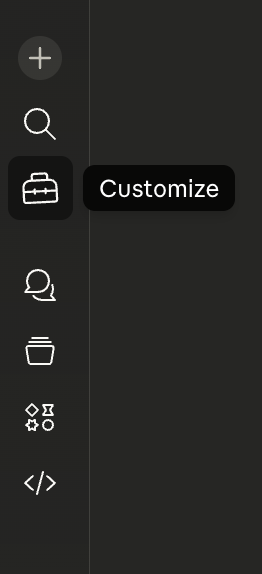
1. Open the Customize panel
Click the Customize icon (the toolbox icon) in the Claude sidebar.
2. Go to Connectors
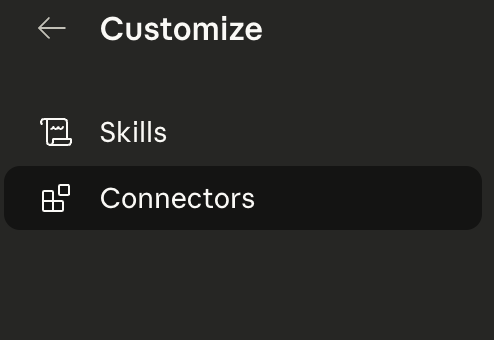
In the Customize panel, select Connectors.
3. Add Swat.io as a custom MCP server
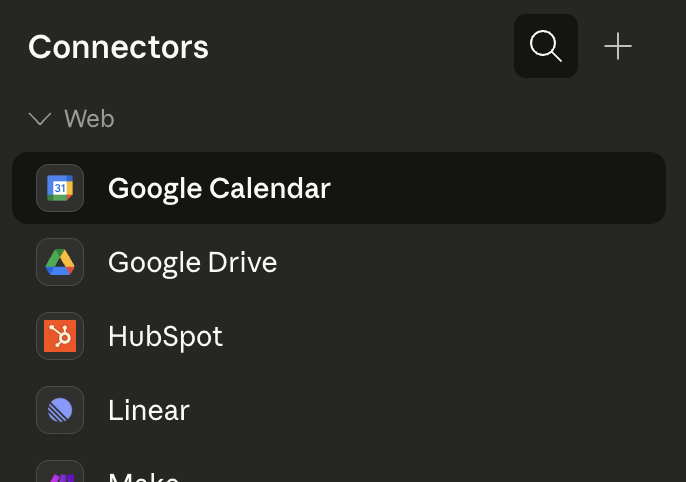
Swat.io is not listed in Claude's built-in connector marketplace, so you need to add it manually. Click the + button in the top right of the Connectors panel.
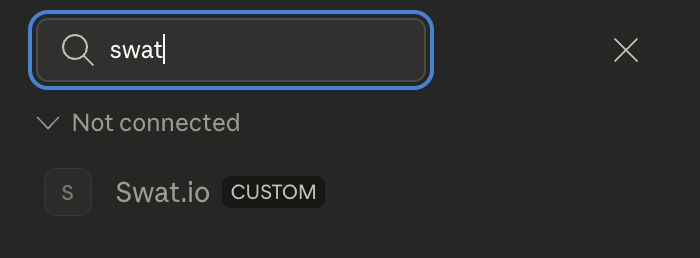
Enter the following details:
- Name: Swat.io
- MCP Server URL:
https://mcp.swatio.app/mcp - Authentication: OAuth
Then click Add.
4. Authorize
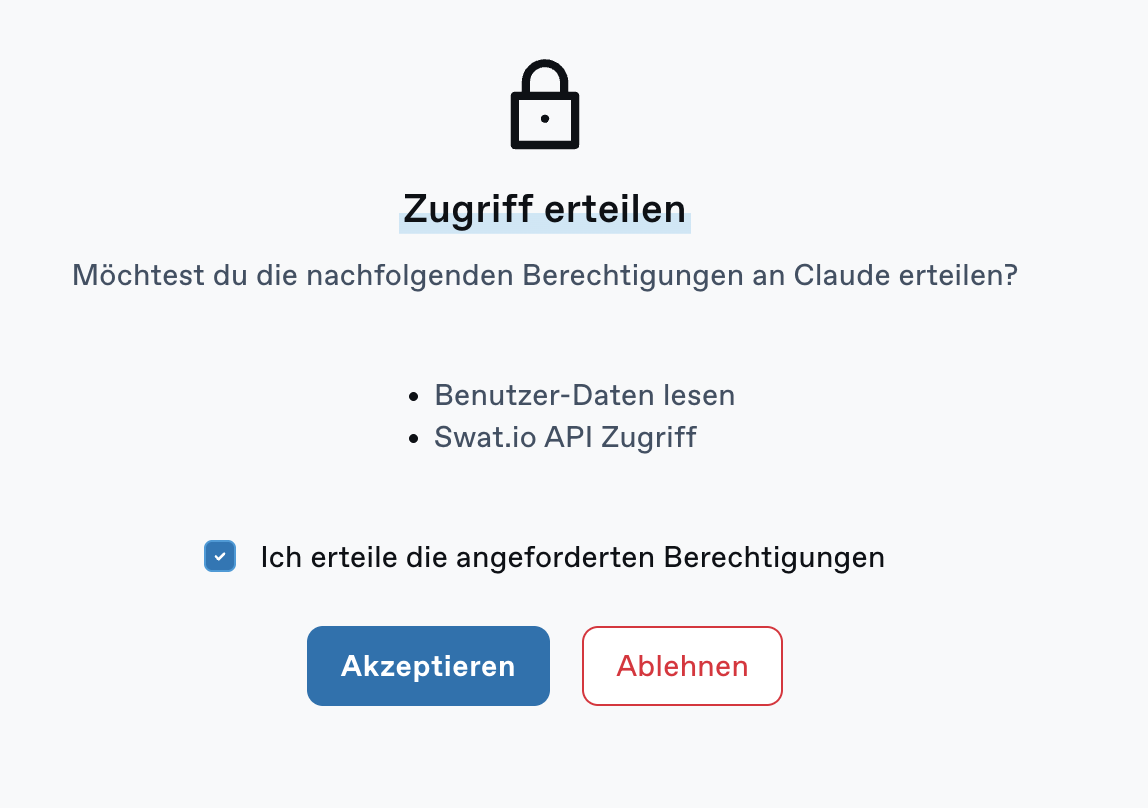
A browser window will open asking you to grant Claude access to your Swat.io account. Check the box and click Accept.
5. You're connected
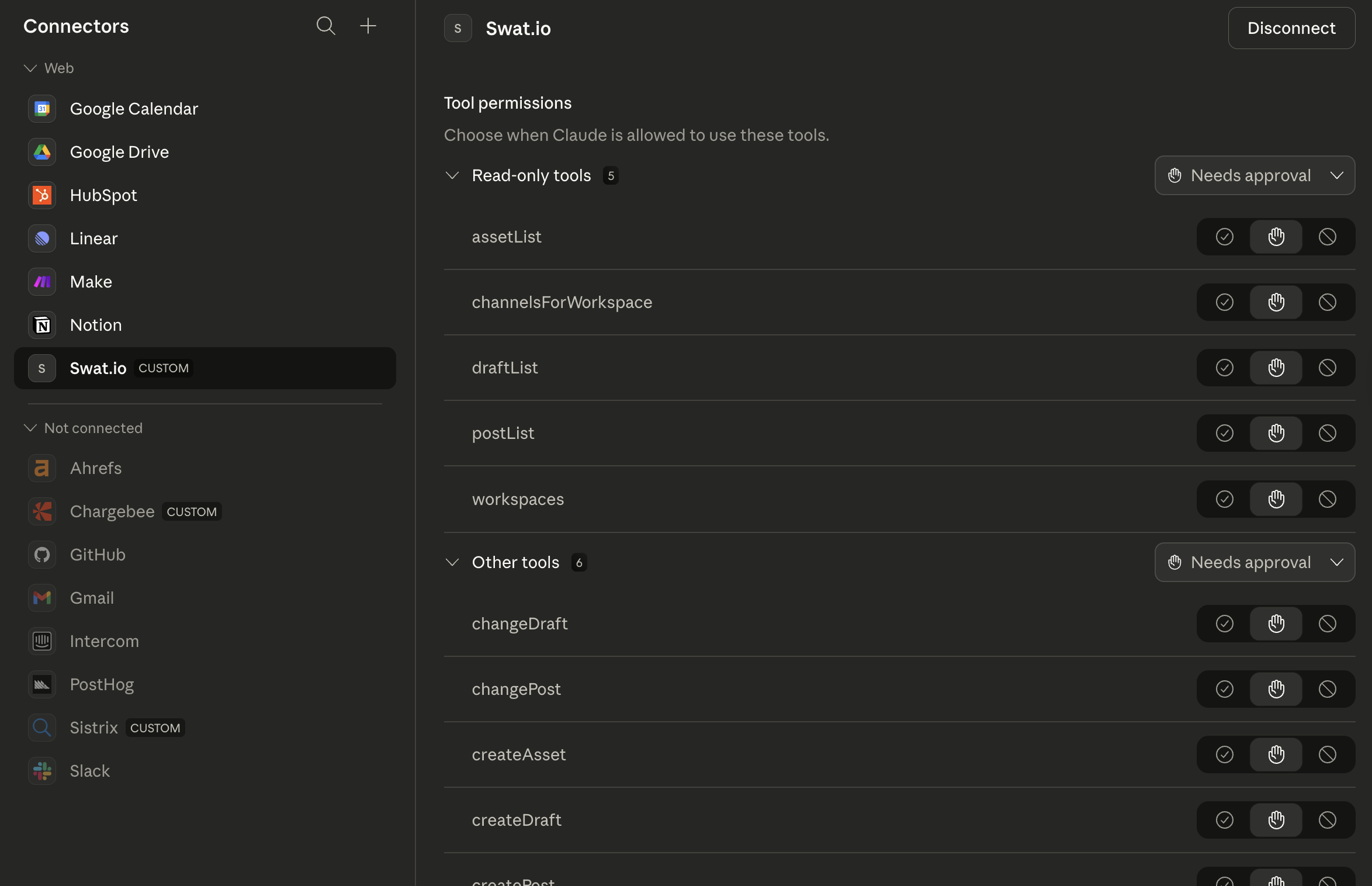
Back in Claude, Swat.io shows as connected with a Disconnect button. You'll see the available read-only and write tools listed under Tool permissions.
Using Swat.io in a chat
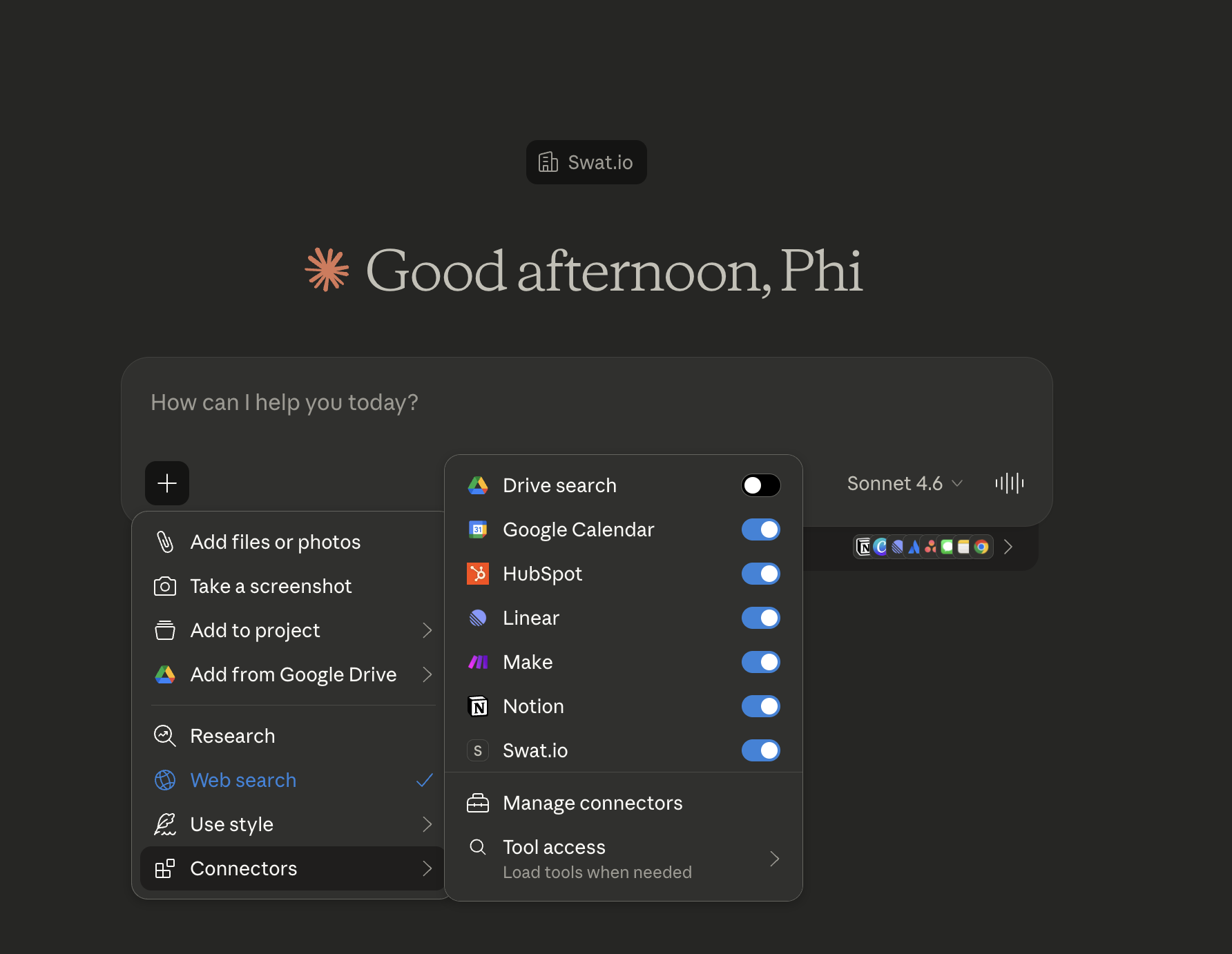
Click the + button in the chat input bar, then Connectors, and toggle Swat.io on. Claude will now have access to your Swat.io workspaces for that conversation.
Troubleshooting:
- The
+button is not visible - Make sure you're on a Claude Pro plan or higher. Custom MCP connectors are not available on the free plan. - Claude asks me to authorize again - The OAuth token has expired or was revoked. Just follow the auth flow again.
Connecting with ChatGPT
Tips
Requirement: ChatGPT Plus plan or higher with custom tooling enabled.
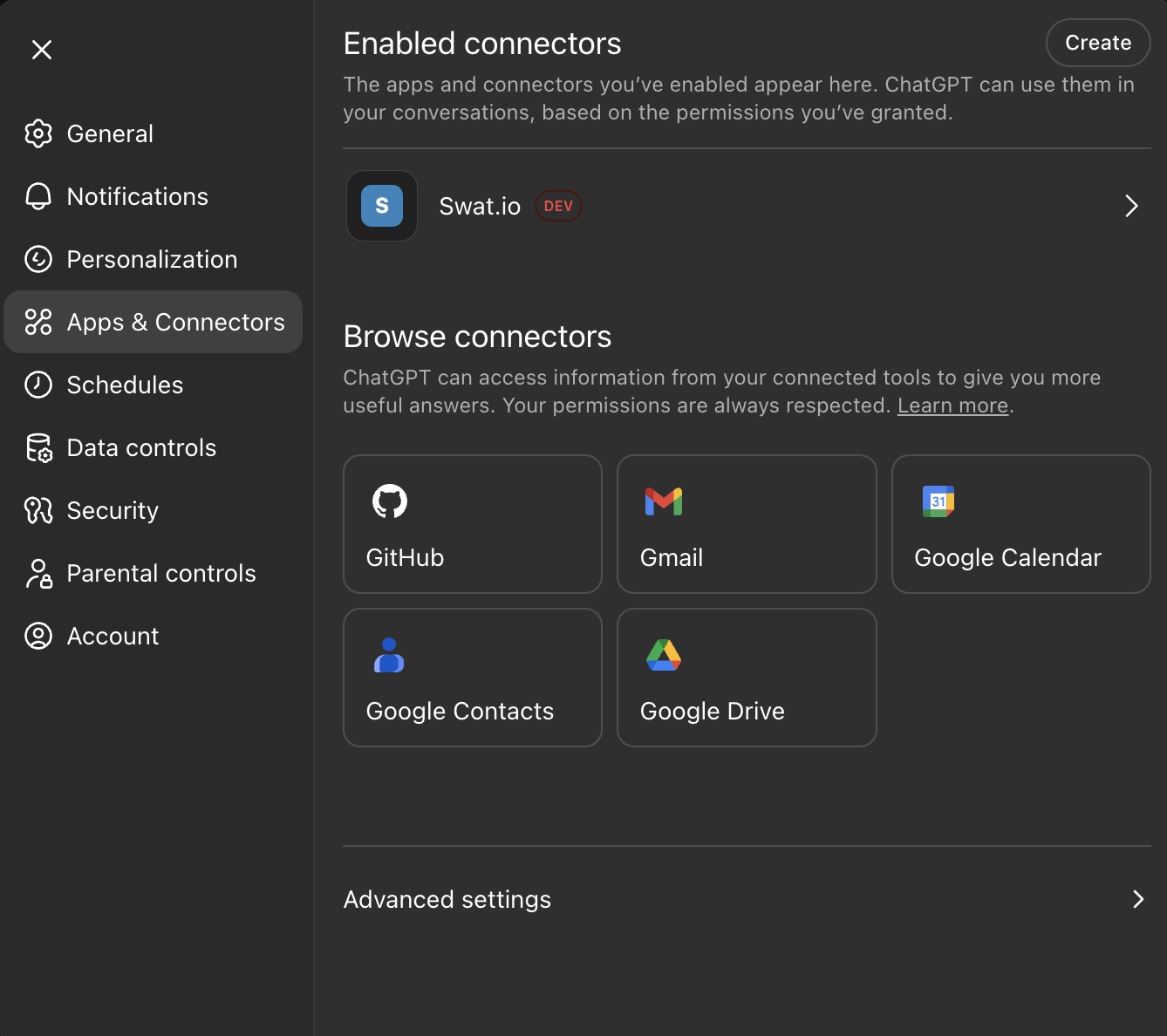
1. Open Apps & Connectors
Add the MCP server through the Apps & Connectors setting.
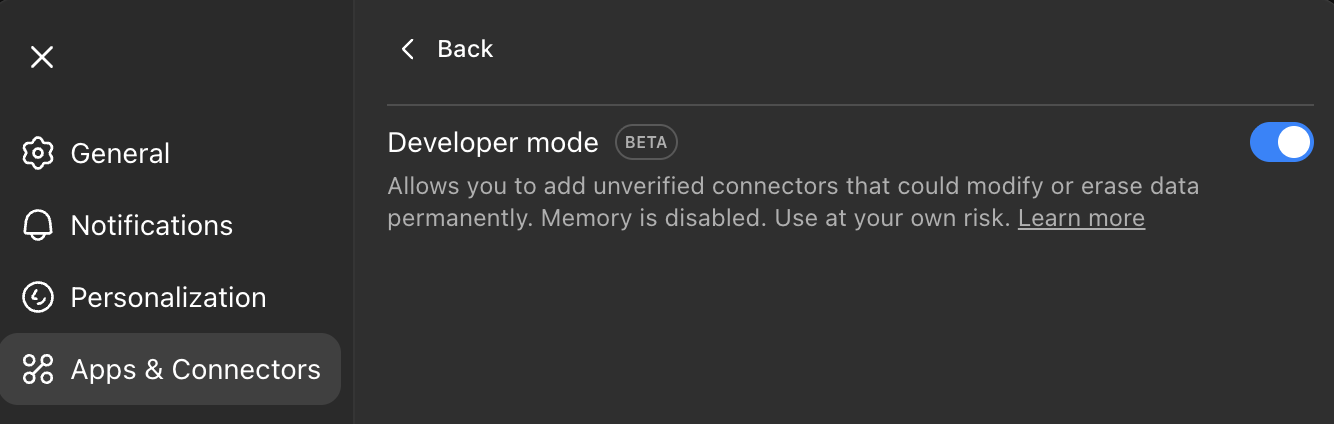
2. Enable Developer Mode
Custom MCP connectors currently require Developer Mode. Click Advanced settings and turn it on.
3. Add the Swat.io MCP server
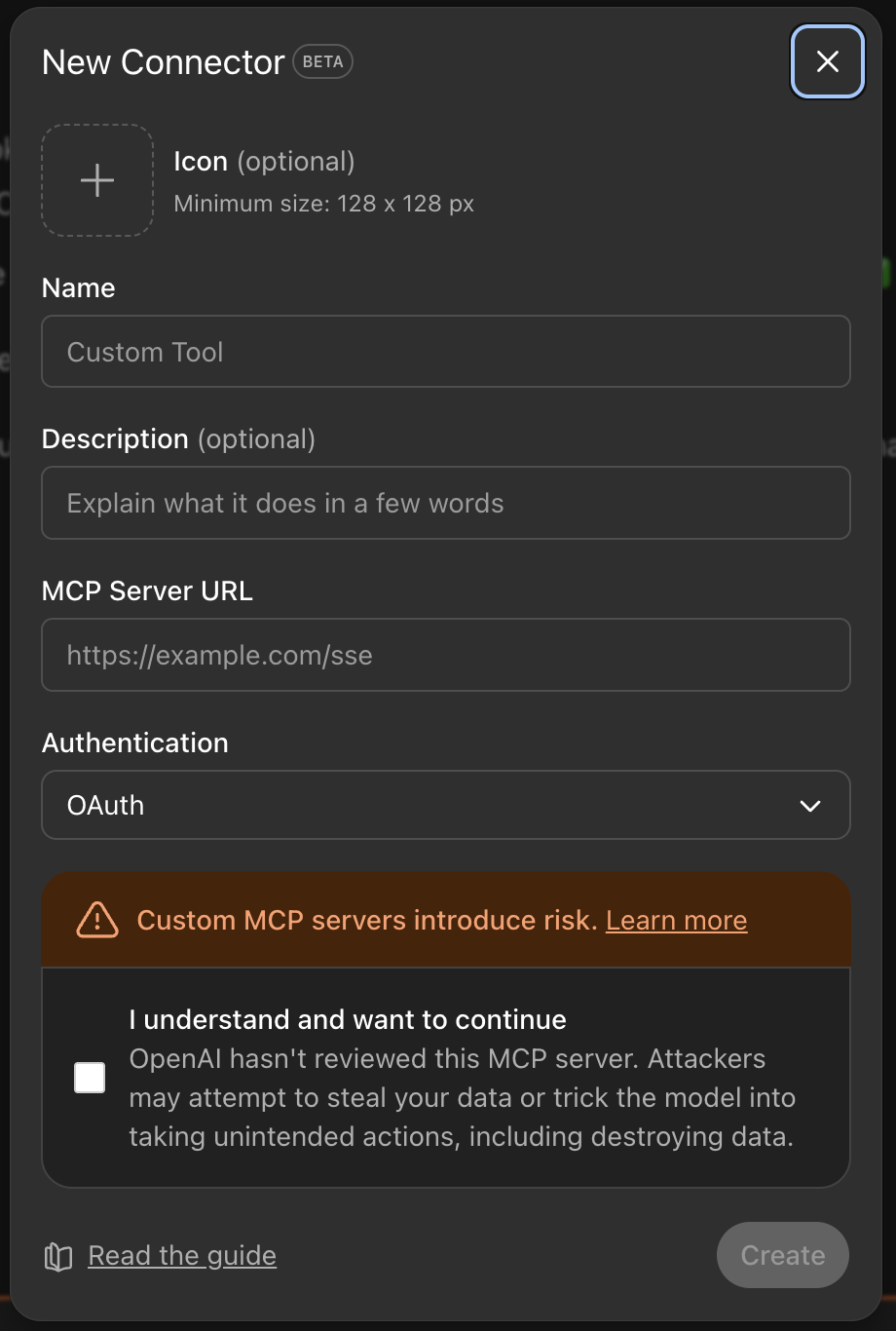
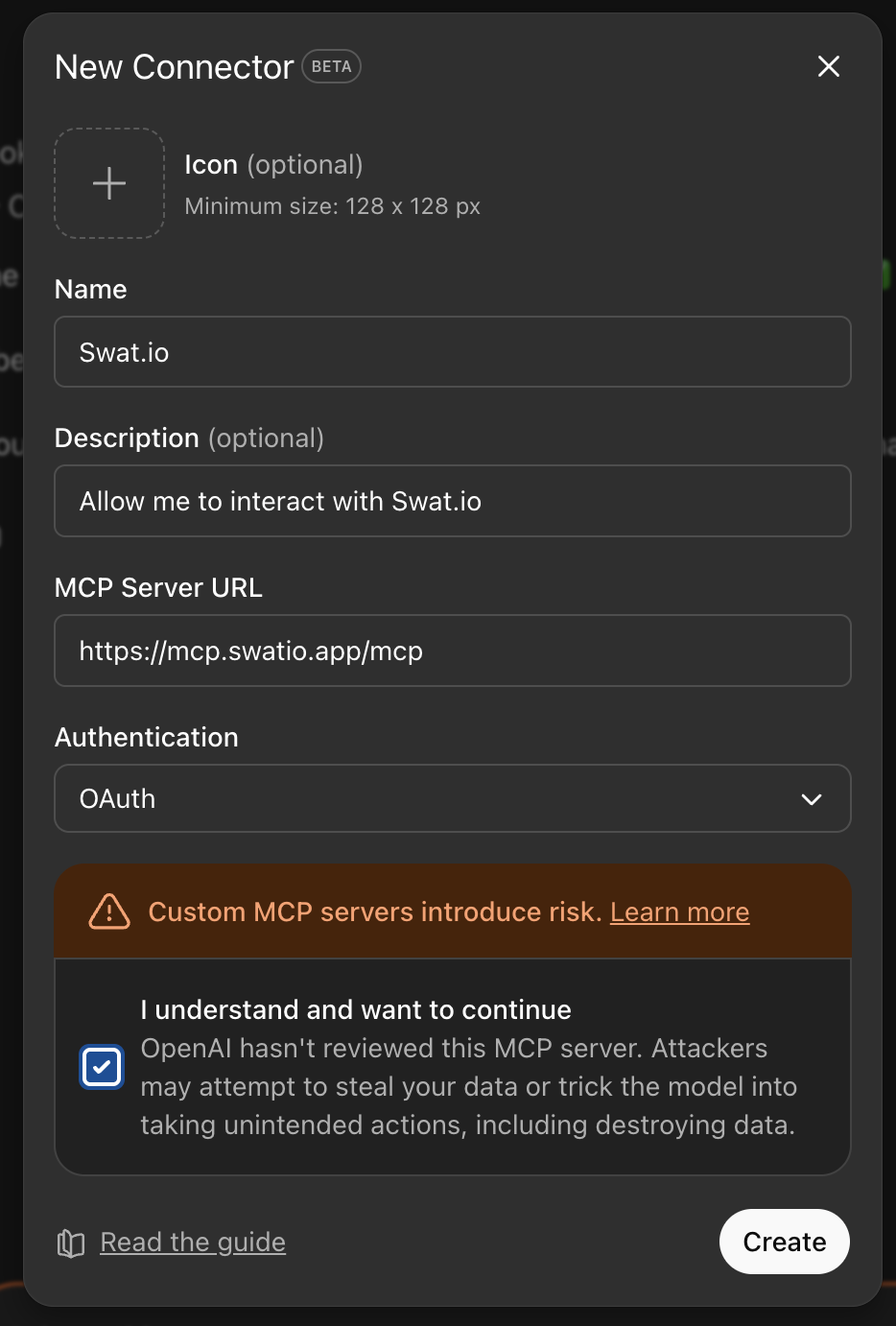
Click Create in the top right and fill in the details:
- Name: Swat.io
- MCP Server URL:
https://mcp.swatio.app/mcp - Authentication: OAuth
- Check the box to activate the connector
4. Connect and authorize
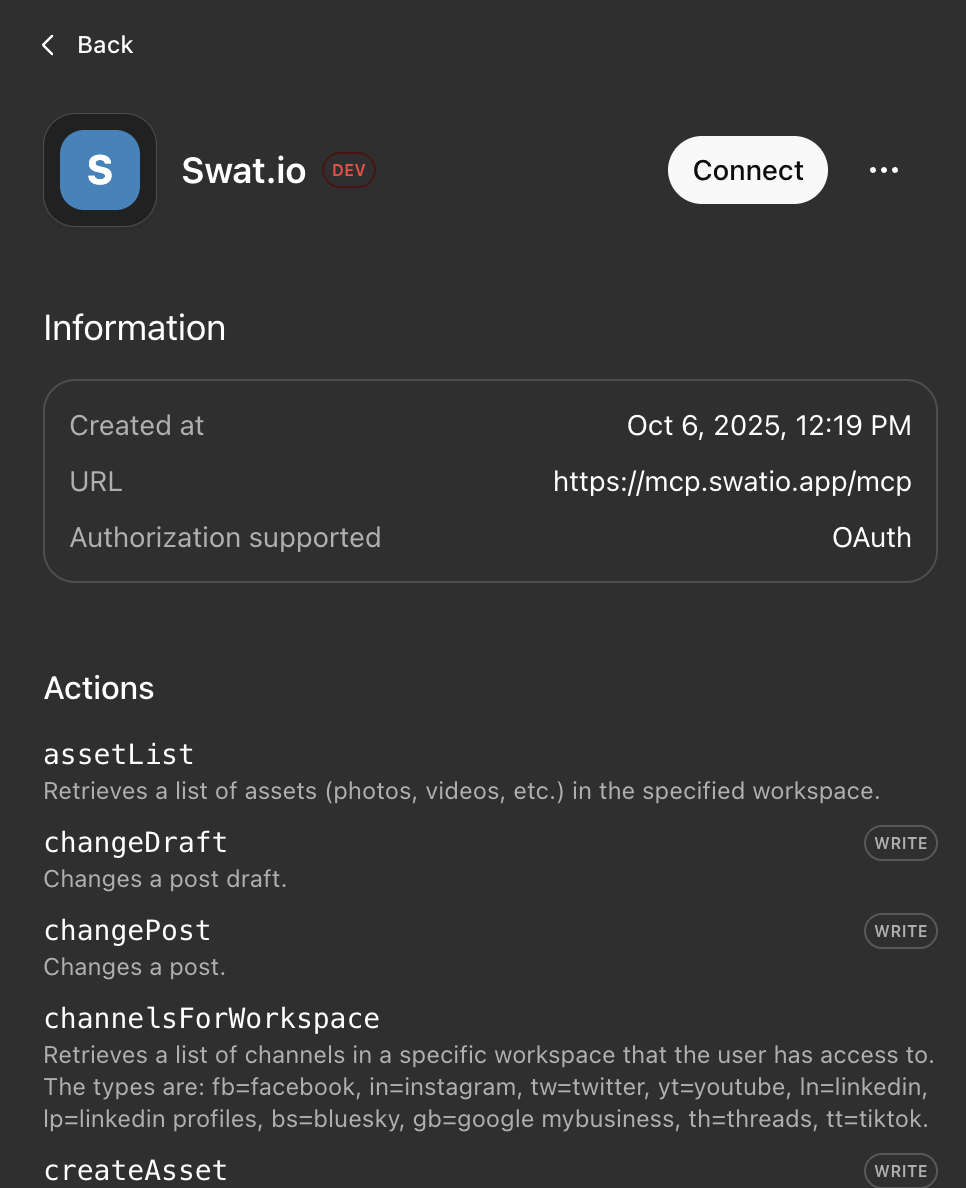
Click on the new connector and then Connect. This takes you through the OAuth flow to link your Swat.io account to OpenAI.
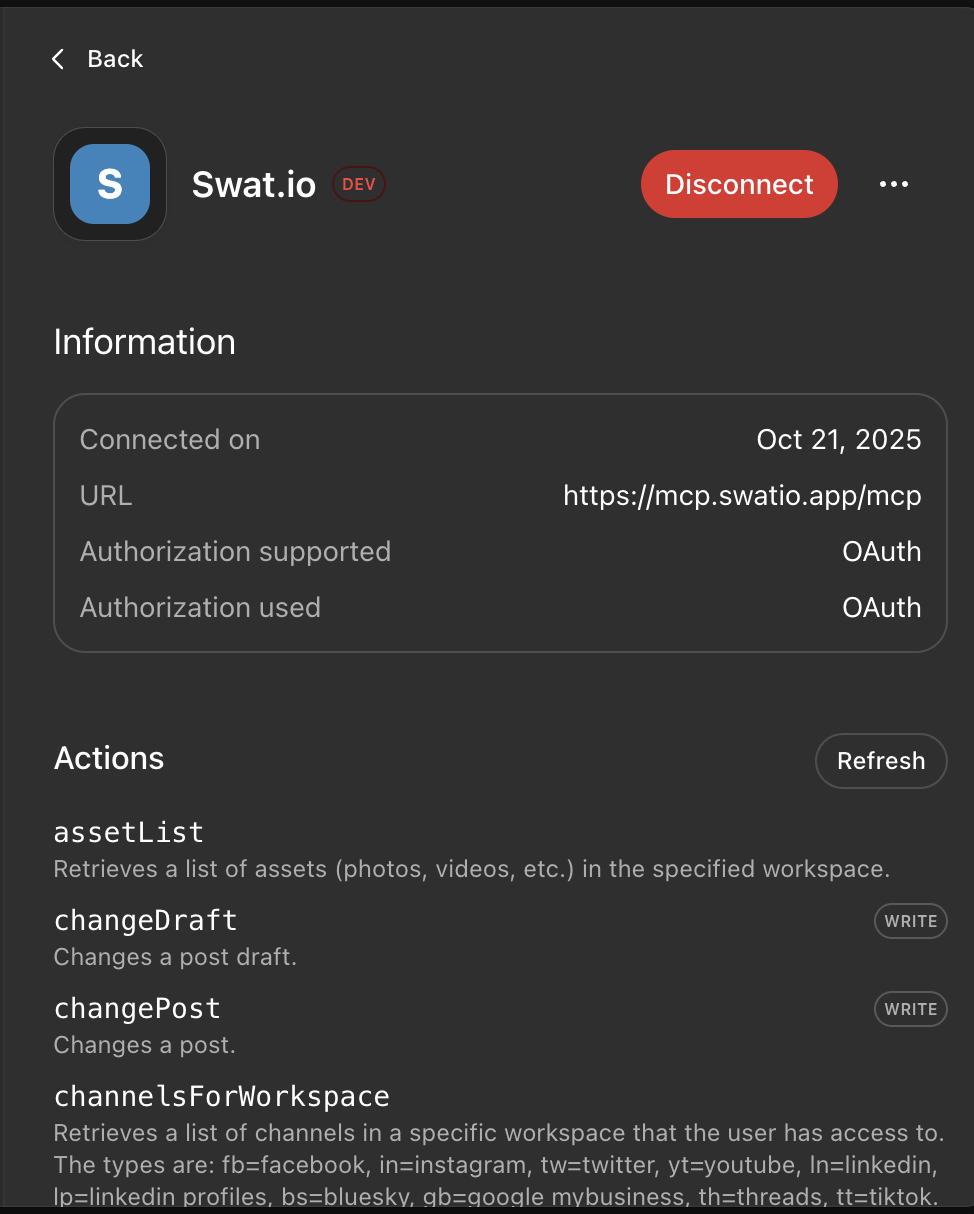
5. You're connected
Once approved, you'll see a Disconnect button confirming the connection is active.
Using Swat.io in a chat
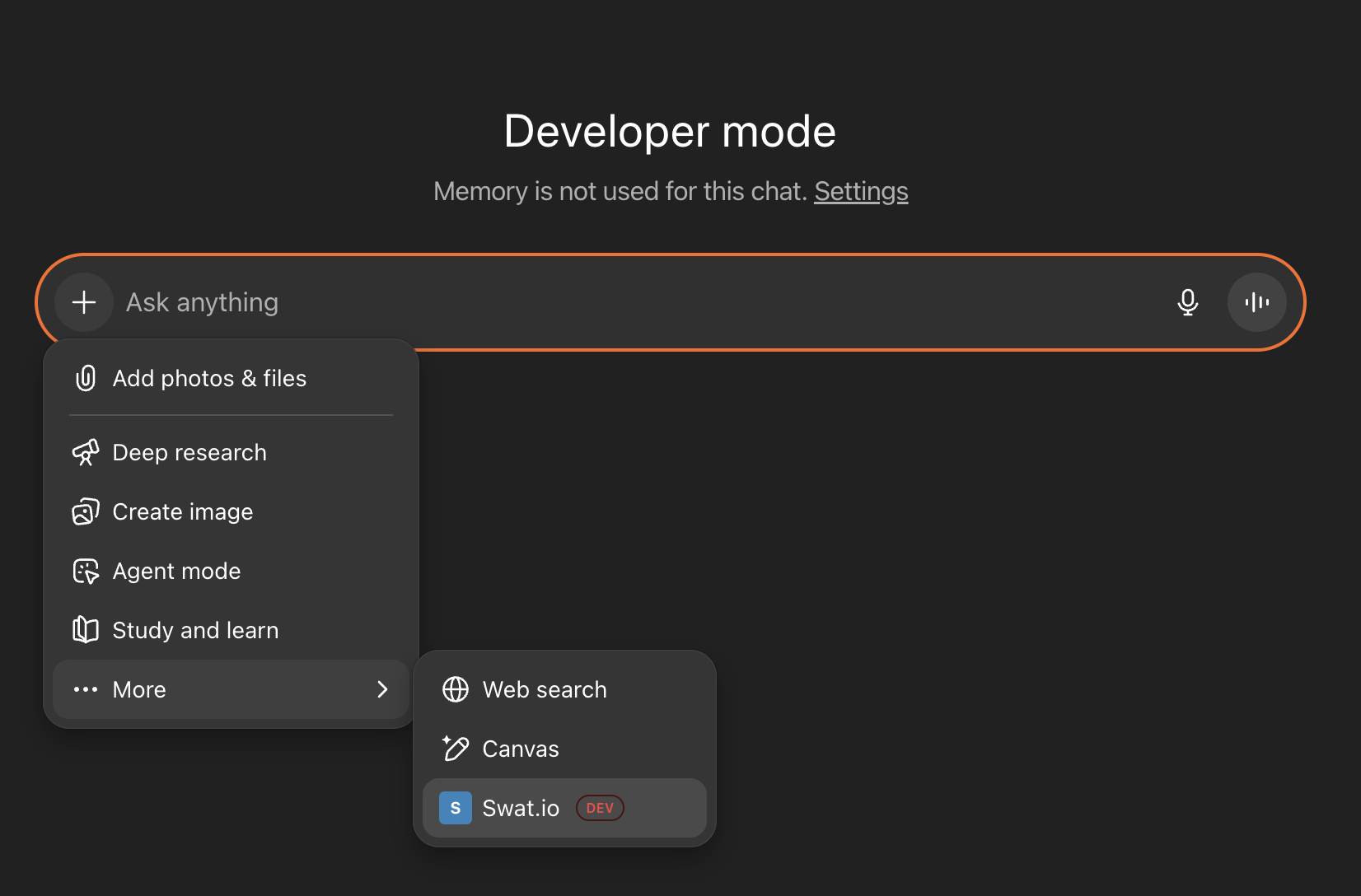
Click the + icon when starting a new chat and add Swat.io as a tool.
Example prompts and workflows
Tips
You can always ask the LLM to list what's possible - it can explain all available tools and what they do.
First: orient Claude to your workspace
Before doing anything else, it's worth telling Claude which workspace and channel you'll be working with most. That way you don't have to repeat it in every prompt. A good first message when starting a new session:
"Connect to Swat.io and list all my workspaces and their channels. I'll be mostly working in the workspace called 'Acme Corp' - find my LinkedIn channel there and use that as the default for this conversation."
If your LLM supports memory or project instructions, save the workspace name and channel ID there so it carries over to future sessions automatically.
Scheduling a post
"On my LinkedIn channel in the 'Acme Corp' workspace, schedule a post for tomorrow at 10am: 'Excited to share that we just launched X - link in comments.'"
"Draft a short text post for my LinkedIn channel about [topic] and schedule it for next Monday at 9am."
Bulk scheduling from a CSV
If you have a content calendar or a spreadsheet of posts ready to go, you can hand it directly to Claude:
"I'm going to paste a CSV with columns: date, message, channel. Create a scheduled post for each row in the 'Acme Corp' workspace on my LinkedIn channel."
Claude will iterate through the rows and call postCreate for each one - no manual copy-pasting required.
Analyzing past content to build a tone of voice
One of the more powerful workflows: use your existing posts to teach Claude how you write, then use that to generate future content.
"Fetch my last 20 posts from the LinkedIn channel in the 'Acme Corp' workspace. Analyze the tone, style, and structure. What patterns do you notice? Summarize my writing style in a few bullet points."
Once you have the summary, you can save it as a memory or project instruction and reference it in future prompts:
"Using the tone of voice you analyzed earlier, write 3 draft LinkedIn posts about our upcoming webinar and save them as drafts in Swat.io."
Working with drafts
"List all drafts in the 'Acme Corp' workspace. For each one, suggest whether it's ready to schedule or still needs work."
"Take the draft with ID [X] and turn it into a scheduled post on my LinkedIn channel for Friday at noon."
Managing Inbox work
Inbox access requires an active Inbox product, the supported Inbox API tier, and the user's normal Inbox permissions. Actions such as hiding, liking, archiving, or assigning are presented for approval and must use explicit IDs.
"List the open tickets for the LinkedIn channel in Acme Corp and summarize the unassigned customer questions."
"Show the negative public comments from the last week, then tag these exact comment IDs with
follow-up."
Organizing assets and campaigns
"Find images in the Acme Corp asset library with the
product-launchlabel and create a campaign for the September launch using its existing tags."
"Duplicate post [X] to the Instagram channel for Friday at noon. Keep it as a suggestion for review."
Reviewing what's scheduled
"What posts are scheduled for this week across all channels in the 'Acme Corp' workspace?"
"Is anything scheduled for today? If not, suggest a good time to post and create a short text post for LinkedIn."
Filtering by post status
"Show me all approved posts in the 'Acme Corp' workspace across channels 100 and 200."
"List all suggested posts waiting for approval on my LinkedIn channel - I want to review them."
Exploring Insights data
Tips
Insights requires the Premium Insights add-on, access to the requested workspace, and permission to view its reports. See the Insights API documentation for available filters and the data returned by charts and tables.
Insights data sources are called widgets. Before requesting reporting data, the MCP client needs to discover the data sources available for the selected workspace:
- List workspaces with
workspacesand channels withchannelsForWorkspace. - List available data sources with
insightsWidgetsConfigAll. - Inspect the requirements of a data source with
insightsWidgetConfigForWidget. Its configuration identifies compatible channel types, supported filters and time aggregations, table columns, and whether pagination is available. - Request the data with
insightsWidgetData, providing the workspace, widget type, channel IDs, and an absolute date range.
Use only channel IDs compatible with the selected widget. For monitoring channels, submit the monitoring child channel ID, not its um parent channel ID. If a table response includes an after cursor, use it for the next page with the same widget and filters.
Time aggregation support is widget-specific. Use only values from supported_time_aggregations; for example, channel_reach_chart supports daily only, not weekly or monthly.
"What are the top 5 posts from the last 30 days by shares for channel Acme Corp ?"
"Find all comments with negative sentiment in the last 7 days"